Debian EFI mode boot on a Macbook Pro, without rEFIt
Diego's post got me to switch from grub-pc to grub-efi to boot Debian on my Macbook Pro. But I wanted to go further: getting rid of rEFIt.
rEFIt is a pretty useful piece of software, but it's essentially dead. There is the rEFInd fork, which keeps it up-to-date, but it doesn't really help with FileVault. Moreover, the boot sequence for a Linux distro with rEFIt/rEFInd looks like: Apple EFI firmware → rEFIt/rEFInd → GRUB → Linux kernel. Each intermediate step adding its own timeout, so rEFIt/rEFInd can be seen as not-so-useful intermediate step.
Thankfully, Matthew Garrett did all the research to allow to directly boot GRUB from the Apple EFI firmware. Unfortunately, his blog post didn't have much actual detail on how to do it.
So here it is, for a Debian system:
- Install a few packages you'll need in this process:
# apt-get install hfsprogs icnsutils
- Create a small HFS+ partition. I have a 9MB one, but it's only filled by about 500K, so even smaller should work too. If, like me, you were previously using grub-pc, you probably have a GRUB partition, you can repurpose it. In
gdisk, it looks like this:
Number  Start (sector)    End (sector)  Size       Code  Name
   5       235284480       235302943   9.0 MiB     AF00  Apple HFS/HFS+

Partition GUID code: 48465300-0000-11AA-AA11-00306543ECAC (Apple HFS/HFS+)
Partition unique GUID: AD1F5465-B777-4178-AC4D-1DE8B2EB1B4B
First sector: 235284480 (at 112.2 GiB)
Last sector: 235302943 (at 112.2 GiB)
Partition size: 18464 sectors (9.0 MiB)
Attribute flags: 0000000000000000
Partition name: 'Apple HFS/HFS+'
- Create a HFS+ filesystem on that partition:
# mkfs.hfsplus /dev/sda5 -v Debian(replace
/dev/sda5with whatever your partition is) - Add a
fstabentry for that filesystem:
# echo $(blkid -o export -s UUID /dev/sda5) /boot/efi auto defaults 0 0 >> /etc/fstab
- Mount the filesystem:
# mkdir /boot/efi
# mount /boot/efi
- Edit
/usr/sbin/grub-install, look for «xfat», and remove the block of code that looks like:
if test "x$efi_fs" = xfat; then :; else echo "${efidir} doesn't look like an EFI partition." 1>&2 efidir= fi - Run
grub-install. At this point, there should be a/boot/efi/EFI/debian/grubx64.efifile (if usinggrub-efi-amd64). - Create a
/boot/efi/System/Library/CoreServicesdirectory:
# mkdir -p /boot/efi/System/Library/CoreServices
- Create a hard link:
# ln /boot/efi/EFI/debian/grubx64.efi /boot/efi/System/Library/CoreServices/boot.efi
- Create a dummy
mach_kernelfile:
# echo "This file is required for booting" > /boot/efi/mach_kernel
- Grab the
mactel-bootsource code, unpack and build it:
# wget http://www.codon.org.uk/~mjg59/mactel-boot/mactel-boot-0.9.tar.bz2
# tar -jxf mactel-boot-0.9.tar.bz2
# cd mactel-boot-0.9
# make PRODUCTVERSION=Debian
- Copy the
SystemVersion.plistfile:
# cp SystemVersion.plist /boot/efi/System/Library/CoreServices/
- Bless the boot file:
# ./hfs-bless /boot/efi/System/Library/CoreServices/boot.efi
- (optional) Add an icon:
# rsvg-convert -w 128 -h 128 -o /tmp/debian.png /usr/share/reportbug/debian-swirl.svg
# png2icns /boot/efi/.VolumeIcon.icns /tmp/debian.png
# rm /tmp/debian.png
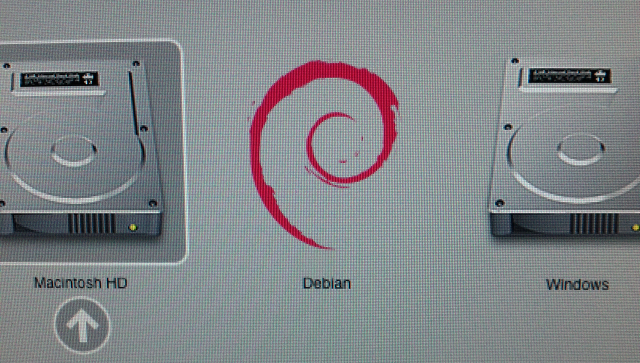
Now, the Apple Boot Manager, shown when holding down the option key when booting the Macbook Pro, looks like this:
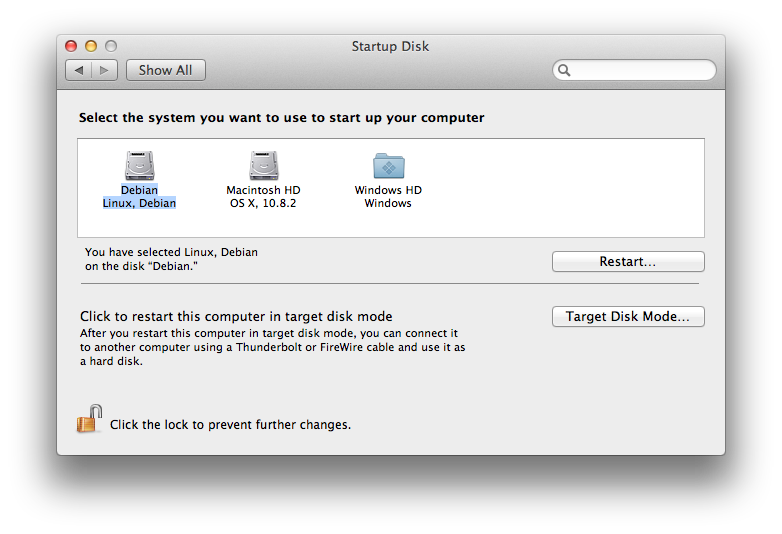
And the Startup disk preferences dialog under OSX, like this:
2012-11-18 11:18:14+0900
Responses are currently closed, but you can trackback from your own site.

2012-11-19 02:26:48+0900
You could go the next step as well, and ditch GRUB in favor of Linux’s native EFI boot support. Just compile a kernel with CONFIG_EFI_STUB and a built-in command line, and install the kernel in place of grubx64.efi.
2012-11-19 08:37:18+0900
This post was extremely helpful. Thank you!
2012-11-19 09:00:47+0900
Anonymous: “Just compile a kernel”. That’s not exactly a very compelling alternative, when my current solution doesn’t require to regularly do something.
2012-11-19 11:32:07+0900
Following command syntax looks wrong (without actually checking on a Debian machine).
> png2icns /boot/efi/.VolumeIcon.icns /tmp/debian.png
Shouldn’t the png file path be first argument?
2012-11-19 14:04:02+0900
Onkar: no
2012-11-19 19:49:18+0900
Thank you Mike, this seems to be just what I needed with a GNU/Linux install on a Mac being just around the corner.
However, I wonder if you could clarify something for me, I feel a bit unsure. Would this be doable during the installation of Debian, before the first post-install reboot?
That is, could I install Debian and get it bootable without rEFInd from the start? Or would I need to first install using rEFInd, and then after booting it the first time, use your procedure and then get rid of rEFInd after that?
It’s not obvious to me if it’s possible to avoid using rEFInd at all. I would appreciate enlightenment. Thanks.
2012-11-25 21:53:50+0900
I have installed successfully grub-efi in my macbook pro early 2011 following your procedure. If I press the option key, I can see debian logo and boot in grub. But, once in grub if I try to launch Mac OS X, then I get this error:
error: no video mode activated Booting in blind mode
And Mac OS X does not boot. I’ll try these options: https://help.ubuntu.com/community/UEFIBooting#Apple_Mac_EFI_systems-1 and I let you know if it works.
2012-12-04 18:48:39+0900
[…] http://glandium.org/blog/?p=2830 Leave a Comment TrackBack URI […]
2013-01-19 02:44:53+0900
Hi,
There is this Debian EFI installer CD, that might simplify the installation process:
http://cdimage.debian.org/cdimage/daily-builds/daily/arch-latest/amd64/iso-cd/
That installer already installs grub-efi. Of course, then, one will still need some tweaking for using Apple’s firmware.
Cheers,
2013-01-31 20:23:31+0900
Hey, Do you think you can do guide for booting archlinux from efi boot?
2013-02-03 21:05:37+0900
This worked beautifully with Ubuntu 12.10 and OS X Mountain Lion.
2013-02-04 00:14:01+0900
[…] Debian EFI mode boot on a Macbook Pro, without rEFIt […]
2013-02-09 00:30:31+0900
Replaced OS X With Ubuntu 12.10, on MacBook Air 3,2.
This procedure woked like a charm!
Thanks!
2013-03-04 15:14:05+0900
great guide sir thanks very much for the info. wheezy install on my macbook air 3,2 is going down a little differently tho…
my wheezy install sets up an efi boot by default, and so some of the steps here would be a little different for me. using disk utility i created 4 partitions: 12GB hfs+ for os x, 600MB vfat for boot, 234GB vfat for /, and 4GB vfat swap. then installed debian. using partman i fixed up those vfat parts to be: 600MB ext3 for boot, 234GB ext4 for /, and 4GB swap. after the debian install my macbook air 3,1 boots right into debian via grub, with no need for refit or anything. so this system is already halfway there fresh out of the box i figure. my fstab file ends up showing apple’sefi partition mounted at /boot/efi and the 600MB partition i created for the debian install is mounted at /boot. weird. if i unmount those and remount them seperately elsewhere to explore them separately i see that /boot/efi/EFI/debian ended up being installed to apple’s boot partition, /dev/sda1, along side the /boot/efi/EFI/APPLE. only the the grub folder (containing grub.conf etc) gets installed to /dev/sda3.
so any tips on how i can convert this setup to show me boot startup disk options in os x, and debian options at the apple firmware boot menu. currently the machine boots right into grub automagically, but if i hold option at boot then the os x disk is the only option.
this is sort of ok anyhow, but i’d like to polish this thing off. i tried the following:
# apt-get install hfsprogs icnsutils vim gdisk build-essential
# cp -Rp /boot /tmp/
# umount -lf /boot/efi
# umount -lf /boot
# mkfs.hfsplus /dev/sda1 -v “EFI System Partition”
# mount /dev/sda1
# echo $(blkid -o export -s UUID /dev/sda1) /boot/efi auto defaults 0 0 >> /etc/fstab
# mount /dev/sda1 /boot
# cp -Rp /tmp/boot/* /boot/
now i thought i’d recreated the hfs fs that apple installs on the efi partition and i can just pick up following the guide again.
# mkdir -p /boot/efi/System/Library/CoreServices
# ln /boot/efi/EFI/debian/grubx64.efi /boot/efi/System/Library/CoreServices/boot.efi
# echo “This file is required for booting” > /boot/efi/mach_kernel
etc….everything was looking good, but when i got to blessing the boot.efi file i got this error: “Unable to bless filesystem: Inappropriate ioctl for device boot.efi”
oouch! any idea where i went wrong or what i can do to fix this up? i think i’ll start over and hang out with the two os’ bootable and await further instruction, lol.
tia gentlemen!
2013-03-04 15:15:30+0900
sorry edit above: after creating the partitions in disk utility i installed mac os x 10.8, then began the wheezy install.
2013-03-09 09:51:49+0900
winston smith: The partition I place under /boot/efi is actually *not* an EFI System Partition. It is a partition that the Apple firmware considers as one it can boot, which is different.
As for the bless error, it means your linux kernel is too old.
2013-03-09 17:17:02+0900
thanks for the info, really appreciate it. i did eventually fall back to following your directions more closely, and only the bless error was hanging me up. i’ll update my kernel and give it another go!
2013-03-18 00:41:43+0900
What version of the kernel is needed? I am running up to date testing and getting the same bless error.
2013-03-24 20:59:20+0900
Wes: Had the same problem you have. Looks like 3.8-trunk from kernel experimental (deb http://mirrors.kernel.org/debian/ experimental main) works; also fixes the applesmc read bug. It also doesn’t look like you need to bless boot.efi to boot off it, which is interesting. (If you still have MacOS installed, you might also be able to boot the Recovery partition and use the bless command from there to bless this also. But I’d say just use this year’s kernel.)
glandium: Thanks huge for the very informative instructions! My new MacBook Air (mid-2012 core i5) is booting stock Debian testing (w/ experimental kernel) now.
2013-03-24 22:56:47+0900
BTW, for anyone who wants it, I’ve made a basic Debian drive icon for my machine. http://fob.po8.org/bart/swirl-drive.png and http://fob.po8.org/bart/swirl-drive.icns .
2013-03-25 09:28:40+0900
er, http://po8.org/bart/swirl-drive.png and http://po8.org/bart/swirl-drive.icns . Sorry.
2013-03-29 05:43:21+0900
This! This is exactly what I was looking for! I found your post last night as I was about to give up and take the inelegant road with rEFInd. May the god(((dess)e)s) bless you!
I now have a mid-2011 MacBook Air booting OS X Lion and crunchbang linux using the native efi boot manager and I am so happy I could spit.
Of course, I did modify this method slightly (partially unwittingly, but I’ll take dumb luck if it turns out to be of the good sort) and so I will post what I did over at: http://crunchbang.org/forums/viewtopic.php?id=25629
Right now it is just me doing a little dance and linking back here, but I hope to be able to put together a nice narrative over the weekend.
2013-04-01 01:08:00+0900
[…] EFI boot mode on a Macbook Pro: http://glandium.org/blog/?p=2830 This link showed me the light, dropped the scales from my eyes, and pointed out that the […]
2013-06-21 19:42:31+0900
Hi Glandium,
Thanks for your great article.
I am trying to get working Debian Wheezy / Xen on Macmini5,3. Xen doesn’t load with the default Wheezy EFI configuration. So I am trying your solution.
But after following the steps without any error messages on a fresh Debian Wheezy upgraded to Sid (with the default EFI support), the Apple Boot Manager doesn’t show anything and so Debian doesn’t boot. The EFI partition was manually removed before creating the small HFS+ partition.
Do you have any ideas of what I am doing wrong ?
Regards,
2013-12-14 17:13:54+0900
Hi Glandium,
Thanks for the great article, it was really helpful.
I managed to apply your method to my ubuntu install, by chrooting just after the automated install. However, on the Mac OS side, either Mavericks or Mountain Lion keep telling my I don’t have a recovery partition after this procedure even though I managed to keep the Recovery HD partition intact. I think Mac doesn’t like an OS with mach_kernel installed on a non journaled filesystem or something like that.
Do you face the same situation? What do you think is going on?
2013-12-24 00:28:01+0900
hello there!
thank you a lot for the post, i’m currently reinstalling everything on my MacBook Air (late 2010, the last one with a real gpu).
So I have two question:
1) after making debian boot “alone”, is it possible to completely remove OSX from the computer? (osx partition + the apple default EFI partition).
2) I actually can’t boot on my debian usb iso to install it, the key is working (i used it a couple of time), refit can see the key but when I select it to boot I got a neverending black screen… Any idea? sudo fdisk -i /dev/disks0 can help me?
2014-01-26 10:04:57+0900
@rez: yes you can do this. all instructions you can find at http://stiobhart.net/post/63822458753/single-boot-debian-wheezy-on-macbook-pro-4-1. I tested it on Macbook2,1 and it works. Maybe this kind of boot is not as fast as with os x installed, but it works
2014-02-14 16:20:40+0900
I’m a little confuse here,
So how can I install Debian at first place and them do these ?
I mean I have to make a USB boot device for it and boot with it ?
Also is this working with Debian 7.4 and MacBook 10.1 ?
If you can help me out I really appreciate it.
2014-03-11 10:35:05+0900
This is not working anymore with latest versions of grub:
Setting up grub-efi-amd64 (2.02~beta2-7) …
Installing for x86_64-efi platform.
grub-install: error: Can’t create file: No such file or directory.
dpkg: error processing package grub-efi-amd64 (–configure):
subprocess installed post-installation script returned error exit status 1
Errors were encountered while processing:
grub-efi-amd64
E: Sub-process /usr/bin/dpkg returned an error code (1)
This is because /usr/sbin/grub-install is now a binary file and not a script anymore.
2014-05-21 02:55:35+0900
I have a late 2011 MacBook Pro, 1TB HD, 16gigs mem, with OSX Mavericks and Linux Mint 16 Petra Cinnamon AMD64 dual boot. I have been trying to dual boot Debian 7.5 Wheezy with OSX without using rEFInd. I was able to do a triple boot, OSX,Win8,LM16 using bootcamp with Windows and then rEFInd to install Linux.
I have been a Windows user since 2.1, before that used MSDOS, but never really got into Linux for the simple reason I did’nt want to learn programming and in the early 80’s programming was diffacult to say the least. So I am a noob, but enjoy learning.
I installed hfsprogs icnsutils, then Created a HFS+ filesystem on /dev/sda3 with 620MB. The next command, echo $(blkid -o export -s UUID /dev/sda3) /boot/efi auto defaults 0 0 >> /etc/fstab which brought back this error, bash: /etc/fstab: Permission denied.
My /dev/sda3 was my Mac recovery partition which I deleted and created hfs+ with gparted.
Tried chmod u+x /dev/sda3 to no avail, any ideas or help would be appricated.
2014-09-11 15:14:57+0900
These instructions helped me out a lot! I learned enough to adapt the process for the recent LTS release of Ubuntu. If you’re interested, the tutorial is here:
http://heeris.id.au/2014/ubuntu-plus-mac-pure-efi-boot/
@Muammar – the error you’re seeing is related to bug #716927 in GRUB. It looks for a “mach_kernel” file in the wrong place and then refuses to continue. See the “Installing GRUB” section of my article.
@Dave – your problem is that you need to be root to edit /etc/fstab. Either become root (somehow) or use sudo:
$ sudo bash -c ‘echo $(blkid -o export -s UUID /dev/sda1) /boot/efi auto defaults 0 0 >> /etc/fstab’
2014-09-17 23:25:13+0900
Thanks @Jason. I was able to install grub in my hfsplus partition. I only needed the mach_kernel files either in /boot/efi and /boot/efi/EFI/debian. In that way, grub-install did not find errors.
2014-10-12 01:27:49+0900
@marcin: thank a lot!!! you link saved me! It worked like a charm! :D
no I have latest Debian running on a MacBookAir3,2 WITHOUT OSX and WITHOUT ReFit \o/
also, it’s booting very quickly since I “blessed” the debian system partition, so I don’t have to wait 1 minutes before Debian boot, or I don’t have to press “alt/option” and select the horrible “Windows” icon now.
SUCCESS!
2014-10-23 13:37:16+0900
Anyone tried this after upgrading to Yosemite?
I had to use a journaled hfsplus filesystem. Yosemite didn’t seem to recognise the one created with mkfs.hfsplus.
I used the bless command under OS X.
I case anyone needs it:
# bless /Volumes/Debian/System/Library/CoreServices –bootefi /Volumes/Debian/EFI/debian/grubx64.efi
2014-10-23 14:06:24+0900
Looks like I can remove the journal under OS X and it still works. So just something with how mkfs.hfsplus and Yosemite play together.
2014-12-12 01:59:08+0900
Alright, awesome. But I don’t need OS X any more on this Mac Mini Server 6,2, so can I go back to using an EFI System Partition? Should I (not) do so during the installation? I want a minimal system, and compiling efibootmgr is going to make that a good deal less possible (it’s a server with no compilers).
2015-11-03 17:03:33+0900
In case it helps anyone, I wanted to mention that some Linux installers now (in 2015) do all of this stuff for you. They create the HFS+ partition and put the magic goo into /System/Library/CoreServices. They also set the volume icon and bless the boot loader. I tried Ubuntu & Centos but neither one did it, Fedora 2.3 did though which was nice.
2015-12-01 17:41:55+0900
There are a couple of steps that are missing, and maybe it’s because you feel that it is understood. But, as @Danial said above, I’m also a little confused.
The question is: Do we need an existing Debian (or Ubuntu, in my case) computer to create this HFS+ partition for the Grub EFI bootloader?
@Jason Heeris, your method is also missing this information to get started. You referenced this page, but you didn’t actually include the very initial steps in your method. You only mention that you need two USB sticks, one for OSX Recovery, and the other for the Ubuntu installer.
I’m trying to install Ubuntu Server 14.04.3 to an XServe1,1 (first gen, Intel) that can run 64-bit OS, but has a 32-bit EFI. So I’m trying to piece together from various documents what I need to do to get this accomplished.
2015-12-03 20:39:58+0900
fresh netinstall of debian stretch alpha4 on retina macbook model 10,1 gets stuck on black screen after post – help please?
I chose mate desktop, googling was not useful
2016-05-28 20:17:41+0900
When I get to the step:
ln /boot/efi/EFI/ubuntu/grubx64.efi /boot/efi/System/Library/CoreServices/boot.efi
I get the error, “failed to create hard link ‘/boot/efi/System/Library/CoreServices/boot.efi’ => ‘/boot/efi/EFI/ubuntu/grubx64.efi’: Operation not permitted”
Does anyone have any idea why I can’t create the hard link?
2016-11-09 12:11:00+0900
New here, Glandium.. many many thanks. We have 600+ white MacBooks for students and sadly now flash isn’t supported on 10.7. I do not have the ability (from what I could find) to password rEFInd, whereas I can the Apple boot manager. I’m in the process of applying your guide to an ’08 White MacBook to see how this goes.
@Thomas
you may want to put a sudo infront of your ln statement
2017-06-30 04:35:55+0900
Hi,
I would like to understand if first I need to do these steps on the debian cli and not the MacOS terminal?
Will these step produce this result?
1.Power up the mac without holding down any key will bring the normal MacOS system.
2.Holding down the alt/option key will then give you the option to boot on MacOS or Debian.
Thank you very much.
2017-08-17 16:43:17+0900
@blue phoenix
when you see apt-get I doubt you could do it in Mac terminal
hence it must be debian or any nix alike.
2nd questtion
yes,”no alt key” during poweron goes direct to macos
alt+poweron will let you see “all” bootable partitions seen by Mac firmware -a.k.a Mac_bios –
all here meaning you can have more than debian + macos
I had up to 8 including “revealed RecoveryHD” intentionnnally
put there for understanding.
see my MacBook_revival_Playground experimenting on MacBook 1 MacOs 10.4 around 2004 and lubuntu-16.04 live on MacBook
2017-08-17 16:46:04+0900
sorry forgot the link
https://sourceforge.net/projects/toysbox/files/MacBook_revival_Playground/
2018-08-06 03:15:12+0900
Thanks for this excellent article. I’m triple-booting Win10 (Legacy, not EFI), Ubuntu 18.04 (EFI), and High Sierra (MacPro 4,1 -> 5,1 through firmware upgrade). Following this procedure [1], I can install and boot all three operating systems. I can boot into all three by holding “ALT/OPTION” at startup. After I move mach_kernel into the proper location on the Ubuntu EFI, Ubuntu appears in High Sierra’s “Startup Disk.” However, if I ask Startup Disk to reboot, it gives me an error: “Running Bless to move the boot files failed” as detailed in link [2].
I’ve tried creating a separate Mac formatted EFI partition for Ubuntu (both iMacOS’ Disk Utility and in Ubuntu) but I see no difference.
I can use the BootCamp Control Panel in Win10 to successfully boot into Ubuntu – however, the corresponding option in High Sierra’s “Startup Disk” does not work.
Any thoughts would be much appreciated.
[1] https://apple.stackexchange.com/questions/332516/how-to-install-ubuntu-on-mac-with-high-sierra-and-legacy-bios-booting-windows-10/332517#332517
[2] https://apple.stackexchange.com/questions/332742/macos-startup-disk-error-running-bless-to-place-boot-files-failed-triple-boo